 Larken
Is it safe to give Larken Full Access?
It's the right question to ask about any keyboard. Here's exactly what Larken's keyboard reads, when it reads it, where it goes, and how to check every request yourself.
What Full Access means
When you turn on Full Access for any third-party keyboard, iOS warns that the keyboard's developer could send what you type over the network. That warning is accurate: it describes what iOS allows, not what a given keyboard does. So the useful questions are what this keyboard actually does with the access, and whether you can check.
Why Larken asks for it
iOS only lets a keyboard use the network, and share data with its own app, when Full Access is on. Larken needs both: to send your recording to your AI provider, to rewrite text you highlight, to answer Ask Larken, and to receive your dictation from the Larken app.
What works without it
- Still works: typing, autocorrect (Apple's on-device spellchecker), and emoji.
- Needs Full Access: dictation, Rewrite, Ask Larken, and the Paste button on the keyboard.
Password fields and phone-number fields always switch to the iPhone keyboard, with or without Full Access. That's an iOS rule.
What the keyboard reads, and when
| What | When Larken reads it | Where it goes |
|---|---|---|
| Keys you type | As you type, to insert the letter and suggest corrections | Nowhere. They aren't sent or kept |
| Text you highlight | Only when you tap Rewrite (Clean up, Shorter, and so on) | Your AI provider, to rewrite it |
| Text before your cursor | Only when you send an Ask Larken request, up to the last 1,500 characters, so the reply fits what you're writing | Your AI provider, with your request |
| Your clipboard | Larken checks only what kind of thing is there (text, link, image), to label its Paste button. It reads the contents only when you tap Paste | Into the app you're typing in. Not sent anywhere unless you ask Larken to use it |
| Your voice | Never by the keyboard. iOS doesn't let keyboards use the microphone, so dictation records in the Larken app | Your AI provider, to transcribe it |
| Your location | Only if you allow it, and only when you ask about places, drives or the weather | Exact location: Apple Maps and Apple Weather only. Your AI provider gets your city, never your coordinates |
Where requests go
- With your own key: straight from your iPhone to your OpenAI or ElevenLabs account. Larken's servers never receive your voice or your words. How own keys work →
- On Full service: your voice and text go from your iPhone to OpenAI under Larken's OpenAI account. Larken's servers handle your subscription and a short-lived key, and never receive your words.
Your provider processes what you send under its own policy. Larken asks OpenAI not to store requests, but OpenAI may keep API data for up to 30 days for abuse monitoring. ElevenLabs keeps data by default on standard accounts.
What Larken doesn't do
- No account: no name, email or password. Your App Store purchase is your identity.
- No analytics or crash-reporting SDKs in the app or the keyboard.
- Larken doesn't keep or send what you type on its keys.
- Your API key stays in your iPhone's Keychain and is only sent to that provider.
- Recordings are kept encrypted on your iPhone for 10 minutes so you can transcribe again (24 hours if one didn't finish), then deleted. Your text history is encrypted on your iPhone and excluded from iCloud Backup.
Check it yourself
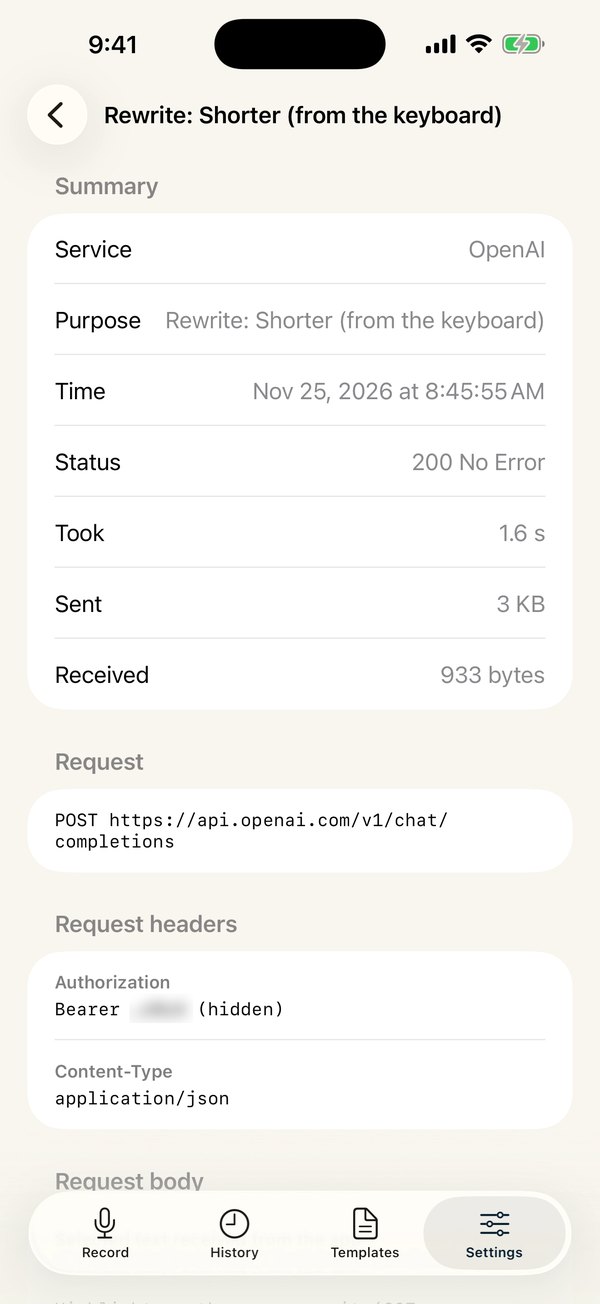
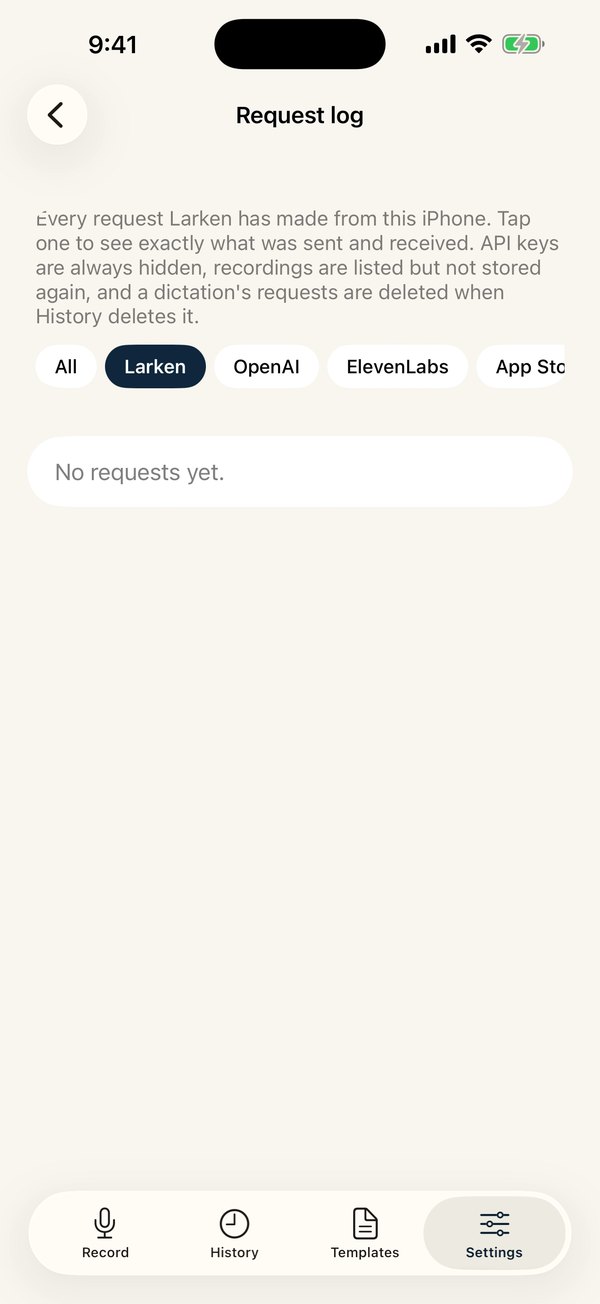
You don't have to take our word for it. In the Larken app, open Settings › Privacy & security › Request log. It lists every request Larken has made from your iPhone. Tap one to see exactly what was sent and received, with your API key hidden. The filters show requests by destination: Larken, OpenAI, ElevenLabs and the App Store.
Turn Full Access off
Open the iPhone Settings › General › Keyboard › Keyboards › Larken and turn off Allow Full Access. The keyboard keeps typing; dictation, Rewrite and Ask stop until you turn it back on.
Try Larken free for 7 days.
Questions about your data? Read the privacy policy →